1. Introduction
Sublime Text is a fast and thoroughly-customizable text editor, adept at everything from editing source code to prose. It is designed with the ethos that “everything is customizable”, even 3rd-Party Packages. You can both add your own features to the editor, as well as add your own programming languages if yours are not already supported.
Sublime Text exposes its internals via an Application Programming Interface (API) that programmers can interact with by creating Plugins using the Python programming language.
1.1. Getting Sublime Text
Stable Build: https://www.sublimetext.com/
Cutting-Edge Build: https://www.sublimetext.com/dev (requires license)
The cutting-edge build can be useful for things like when you report a bug and then they fix it and release a new build right away (happened to me on build 4199).
If you want to run Sublime Text in more than one operating system on the same computer, such that it shares configuration and installed packages, customizations, etc., refer to Dual Boot Setups for how to do that.
1.2. Basics
1.2.1. Terminology
In Sublime Text documentation, including this document, the terms “caret” and “cursor” are used almost interchangeably, except in technical programming topics where a “caret” specifically means the “cursor” when no text is selected.
This and other terms you may run across can be looked up in the Glossary whenever needed.
1.2.2. Starting Sublime Text
Starting Sublime Text is as easy as launching sublime_text.exe from its installation directory. Normally this is done by opening the Sublime Text icon that was installed with it. subl.exe is a command-line helper designed to make it easier on Windows to deal with certain things. It launches sublime_text.exe.
There are a few command-line options that may be of interest. Here is the output
of subl --help:
Sublime Text build 4200

Usage: subl [arguments] [files]         Edit the given files
   or: subl [arguments] [directories]   Open the given directories
   or: subl [arguments] -- [files]      Edit files that may start with '-'
   or: subl [arguments] -               Edit stdin
   or: subl [arguments] - >out          Edit stdin and write the edit to stdout

Arguments:
  --project <project>:    Load the given project
  --command <command>:    Run the given command
  -n or --new-window:     Open a new window
  --launch-or-new-window: Only open a new window if the application is open
  -a or --add:            Add folders to the current window
  -w or --wait:           Wait for the files to be closed before returning
  -b or --background:     Don't activate the application
  -s or --stay:           Keep the application activated after closing the file
  --safe-mode:            Launch using a sandboxed (clean) environment
  -h or --help:           Show help (this message) and exit
  -v or --version:        Show version and exit

Filenames may be given a :line or :line:column suffix to open at a specific
location.
See Command Line Interface in Official Documentation here for more details.
1.2.3. User Interface
Sublime Text is built up from a number of simple-but-powerful concepts. It is this fact that makes it—once you get to know it—a joy to work with, and easy to customize to increase your productivity for the type of editing you engage in most. The most basic of these concepts are summarized below with links to more detailed information. More advanced concepts are covered in later pages.
1.2.3.1. Application
A Process in the Operating System sense of the word (sublime_text.exe on Windows), is a “singleton-type” application, meaning normally there can be at most one running on any given computer, but it can host any number of open Sublime Text Windows simultaneously, each potentially having a different Project open.
1.2.3.2. Window
A Window is a single unit of the UI with title bar, and minimize, maximize and close buttons in the upper right.
Each Window has (in top-to-bottom order):
one Title Bar
one Main Menu
one Client Area
one Status Bar
The Client Area has (in left-to-right order):
one Side Bar (may be hidden)
one Editing Area (always visible)
several Overlays temporarily overlay parts of the Editing Area to user input (e.g. autocomplete lists, only one is ever visible at a time).
several Panels (e.g. Find Panels; only one is ever visible at a time).
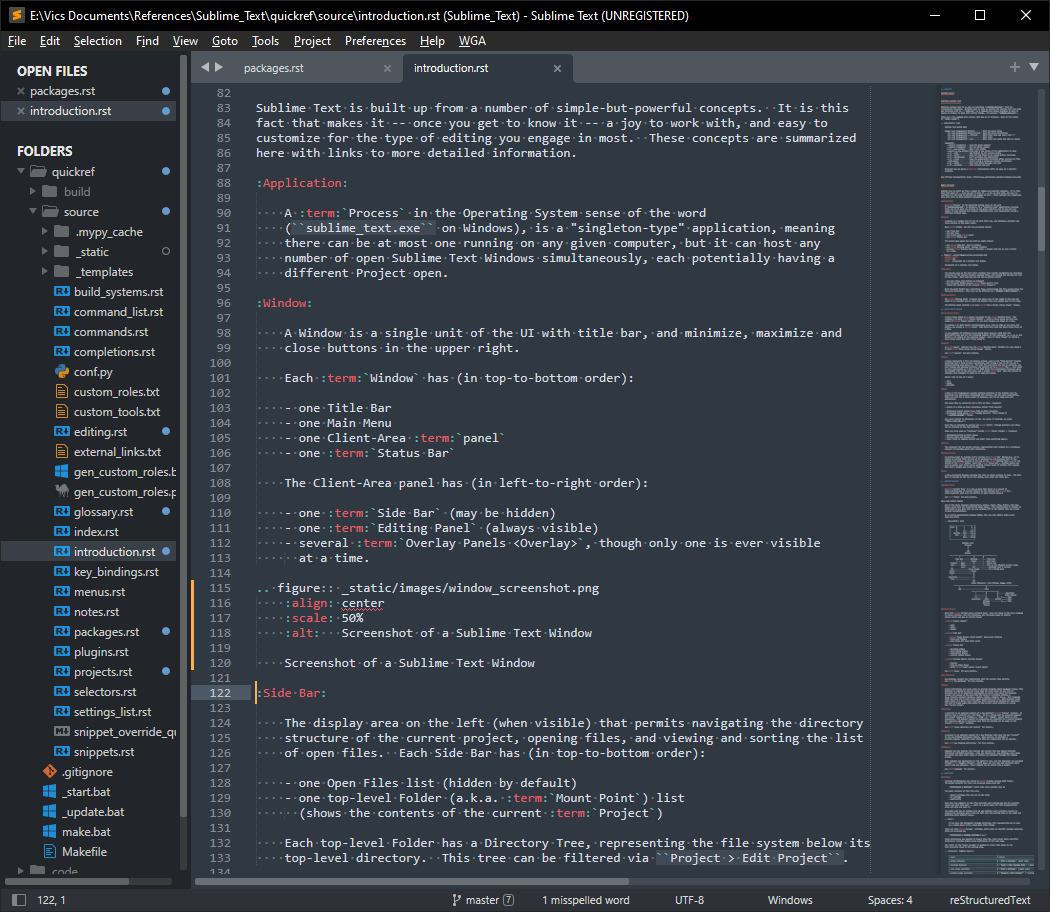
Fig. 1.2.3.1 Screenshot of a Sublime Text Window
1.2.3.3. Side Bar
The display area on the left (when visible) that permits navigating the directory structure of the current project, opening files, and viewing and manually sorting the list of open files. Each Side Bar has (in top-to-bottom order):
one Open Files list (hidden by default)
exactly 1 current Project, which contains a list of zero or more top-level Folders (a.k.a. Mount Points), each enabling the user to quickly navigate among the files in a directory structure.
Each top-level Folder has a Directory Tree, representing the file system below its top-level directory. This tree can be filtered via . See Projects for details.
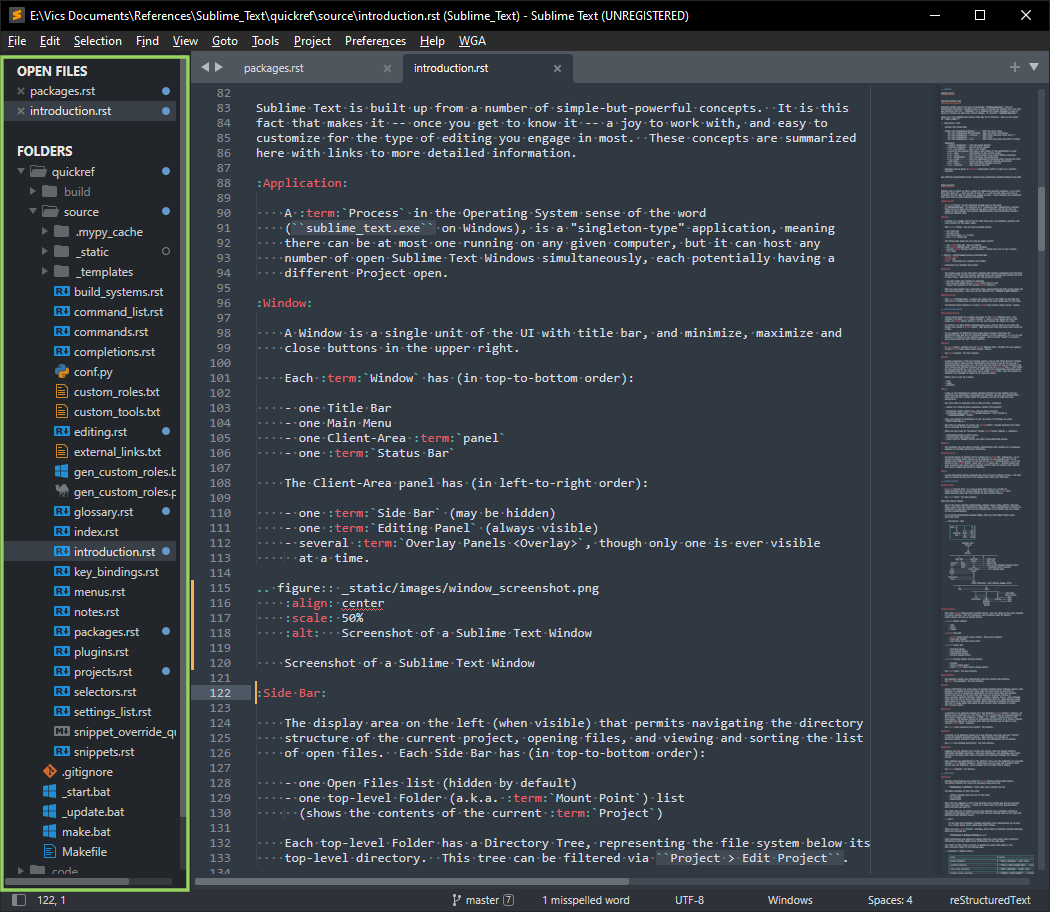
Fig. 1.2.3.2 Side Bar
The Side Bar is also part of Sublime Text’s Git Integration. The following “status badges” appear next to files and directories in the side bar indicating various Git statuses:
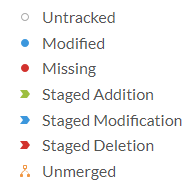
Fig. 1.2.3.3 Side Bar Git Status Badge Key
1.2.3.4. Editing Area
The Editing Area occupies the whole area to the right of the Side Bar (when it is visible) and is where the Sublime Text user spends most of his time.
The Editing Area contains 1 or more View Group Panes.
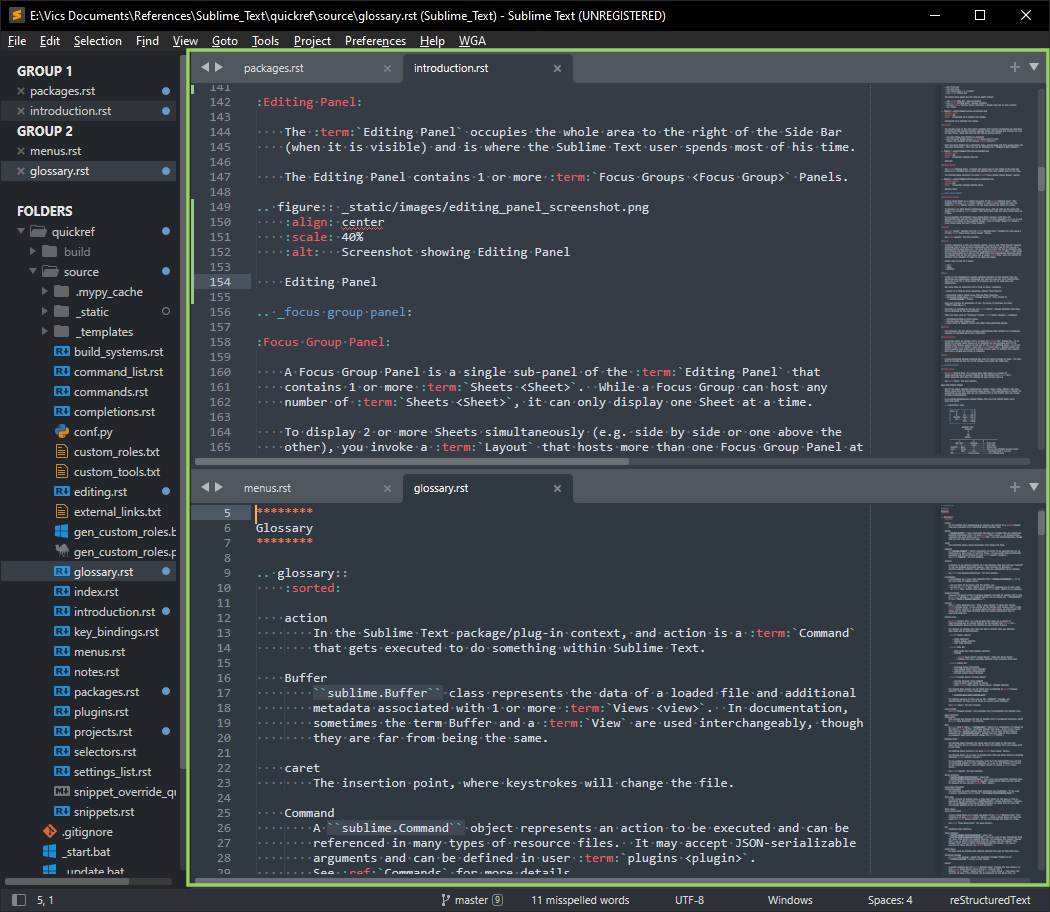
Fig. 1.2.3.4 Editing Area
1.2.3.5. View Group
A View Group is a single sub-pane of the Editing Area that contains 1 or more Sheets. While a View Group can host any number of Sheets, it only displays one Sheet at a time. The other Sheets are hidden, and represented by the un-selected tabs at the top of the View Group.
To display 2 or more Sheets simultaneously (e.g. side by side or one above the other), you can do so temporarily by invoking Side-by-Side Editing, or you can do so by invoking a Window Layout that hosts more than one View Group at a time.
To see examples of different View-Group-Panel Layouts, hold down the Alt-Shift keys and hit the following numbers in this sequence: 2, 3, 8, 9, and finally 1 to return to the original Layout. Each of those “areas” is called a View Group.
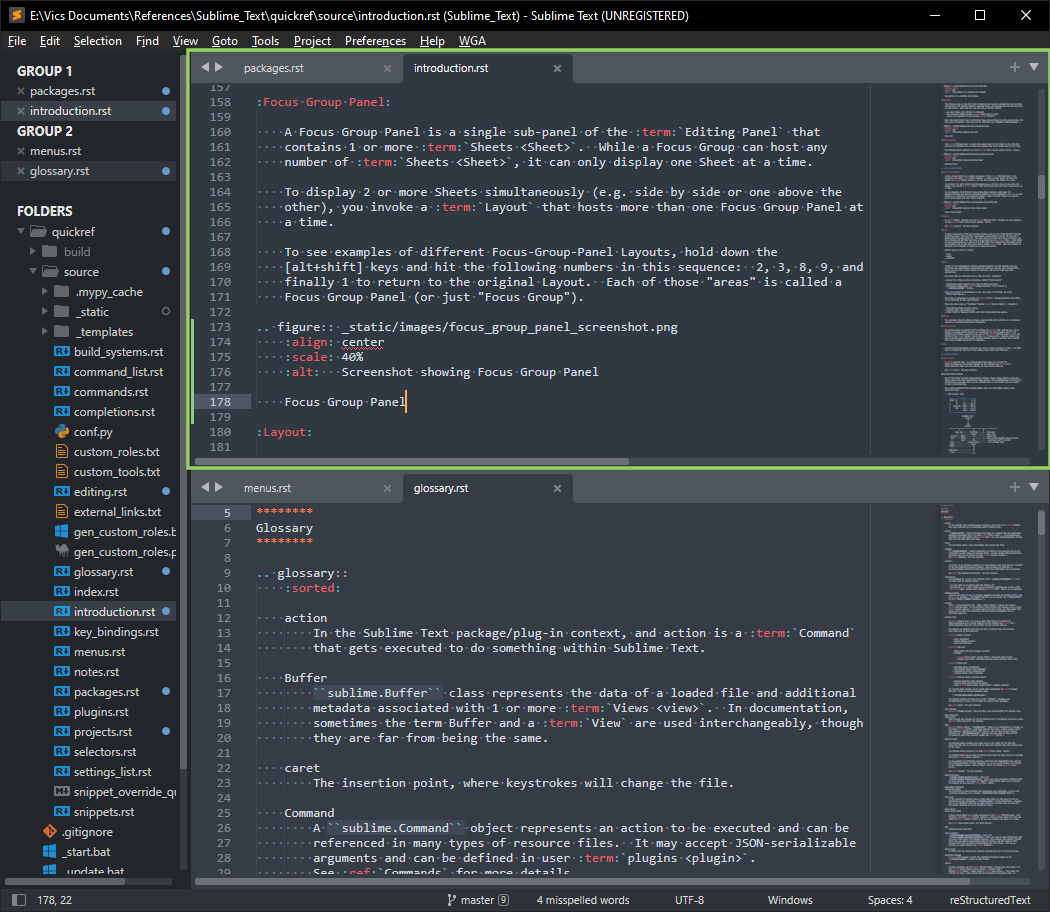
Fig. 1.2.3.5 View Group
When a View Group has a lot of Sheets open and the one you are looking for is not visible, there are 3 ways to get at the Sheet (Tab) that you are looking for (in order from fastest to slowest):
if the Side Bar OPEN FILES list is in view, click on file there;
click the Sheet List icon in the upper-right corner of the View Group (▼);
scroll the Side Bar so the OPEN FILES list is in view, and click on file there (downside: it scrolls away from the project directory structure you may have been using);
scroll tabs left or right using one of the “Scroll Tabs” controls (◀ ▶) in the upper-left corner of the View Group (downside: this can be slow when there are a large number of Tabs).
1.2.3.6. Window Layout
A Window Layout controls how the Editing Area divides its area among 1 or more View Groups.
See Layouts for more details.
1.2.3.7. Sheet
A Sheet represents 1 file (or display output, such as the “Find Results” display resulting from a Find-in-Files operation), each having a Tab at the top and a display/editing area below it.
Sheets come in 3 types:
Text
Image
miniHTML
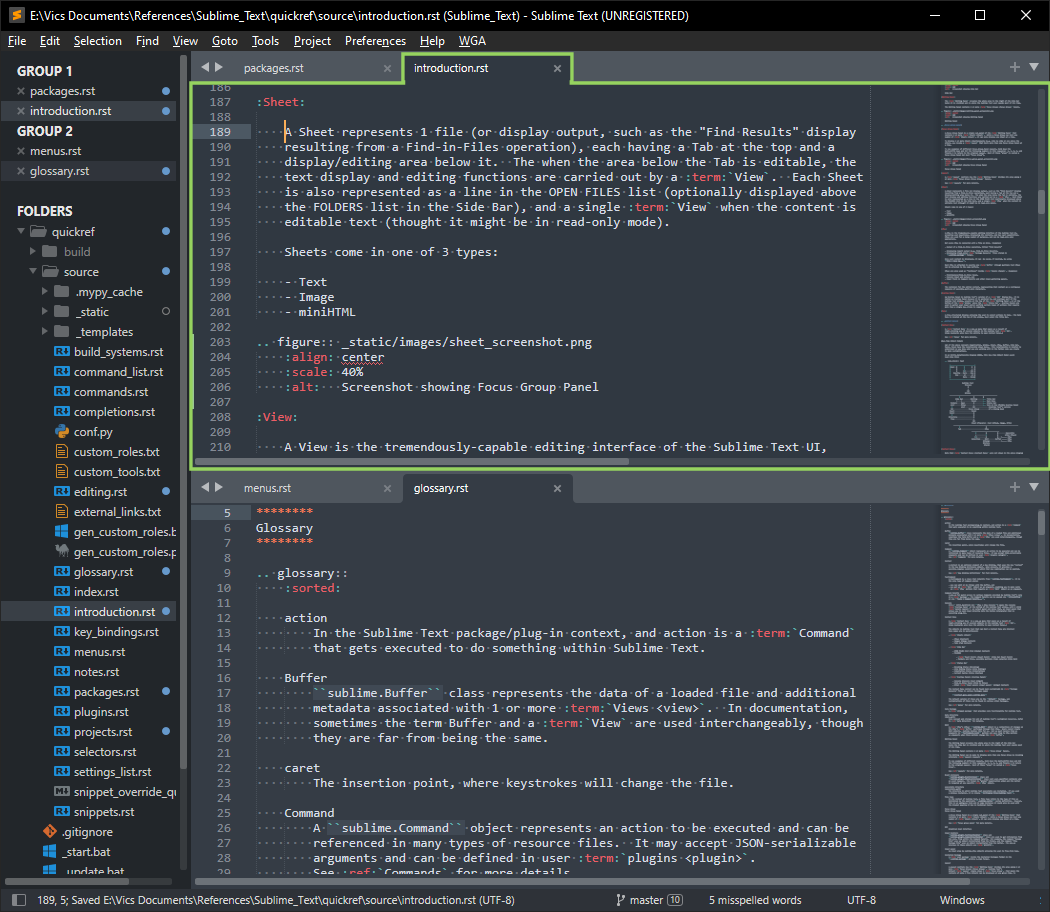
Fig. 1.2.3.6 Sheet
When the area below the Tab contains text, the text display and editing functions (assuming it is not in read-only mode) are carried out by a View.
If you single click a file containing text in the Side Bar, the contents appear in the View in “semi-transient” mode. (File name is in italics in the Tab.) If you open the file by one of these methods:
from the menu,
double-click the filename in the Side Bar,
double-click the Tab (when it is in “semi-transient” mode), or
start editing it,
then the file is no longer “semi-transient”, the filename will no longer be in italics in the Tab, and its name will also now appear in the OPEN FILES list at the top of the Side Bar. You can drag these names in the OPEN FILES list, or drag the Tabs at the top of the View Group, to reorder them.
See transient in the Glossary for more details about “transient” and “semi-transient” states that Sheets can have.
1.2.3.8. View
A View is the tremendously-capable editing interface of the Sublime Text UI, accepting user keystrokes, displaying its contents, and has vast capabilities. Views are used for a large number of purposes, and can be read-only when appropriate.
Not every View is connected with a file on disk. Examples:
displaying report output (e.g. Find-in-Files Results titled “Find Results”),
displaying (read-only) Package Resource files stored in
.sublime-package(zip) format,new files () before they are saved to disk.
Once such content is displayed, it can be saved, if desired, by using .
Each View is attached to exactly one Buffer, though multiple Text Views can be attached to the same Buffer.
Views are also used as input “TextBoxes” inside Panels and Overlays. Examples:
Find/Replace/Find-in-Files Panels,
Console input and output, and
Input field in Command Palette (an Overlay) and other input-gathering panels.
The beauty of this is that they have many features (like Undo/Redo), and Plugins can get access to their contents in Text Commands in the same way as they do for regular text being edited.
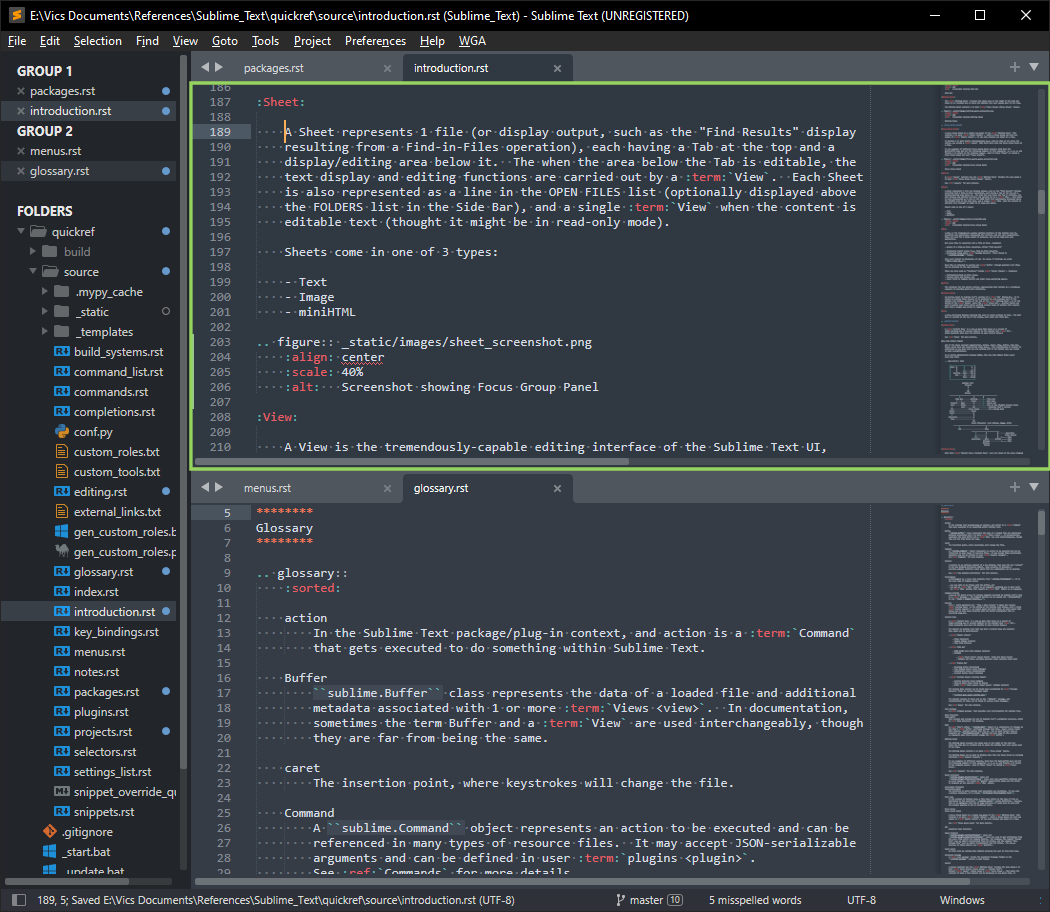
Fig. 1.2.3.7 View
1.2.3.9. Buffer
The container for the edited content of a View, representing that content as a contiguous sequence of possibly-multi-byte characters. Line separators within the Buffer are always a single newline (’\n’, 0x0A) character, regardless of the file’s line-endings. For platforms that use different line separators for text stored in files, this translation occurs during loading and saving, but the line separators in Buffers are always a single newline (’\n’, 0x0A) character and this is consistent across all platforms.
sublime.Buffer class represents the data of a loaded file (or just display
text in the case of a scratch buffer, not associated with a file, e.g. in a
Find Results View) and additional metadata associated with 1 or
more Views. In community documentation, sometimes the term Buffer
and a View are used interchangeably, though they are far from being the
same.
Classes that inherit from TextCommand in plugins can gain access to Buffers and thereby have many ways (via the View object that gets passed to TextCommands when they are run) of finding, extracting, inserting, deleting and replacing text in buffers.
More than one View can be attached to a Buffer. is one way to do this. This can be very handy if you have, for example, a reference documentation in 1 part of a file, and you are using as a reference while you are writing something in another part of the same file. When they are not right next to each other, is a handy way to do this. (Once done, you can also move a View to another View Group, for example, if you want to do this with 1 View above the other one.)
In a TextCommand’s run() method, self.view.clones() will return a
list of such views. The Buffer’s primary view will return True on the call
to self.view.is_primary().
1.2.3.10. Panel
A Panel is Sublime Text’s implementation of a GUI Tool Palette (a dialog box that stays open and can be interacted with in order to assist in some way with the production activity in the main window). Panels are found at the lower part of the Window and provide a semi-permanent location for sets of Widgets used in continued editing operations. Example: the Find Panel continues to highlight whatever text is entered there, as long as the Find Panel is open. This continued highlighting can be very useful in different circumstances while you are editing.
Examples:
Find Panel
Find-in-Files Panel
Replace Panel
Incremental Find Panel (Find Panel w/o copying selection to find input)
Console Panel
Output Panel (used by Build Systems and some Packages, via )
Panels are used to gather user input and/or perform certain types of actions that sometimes require more than a single key-stroke to complete.
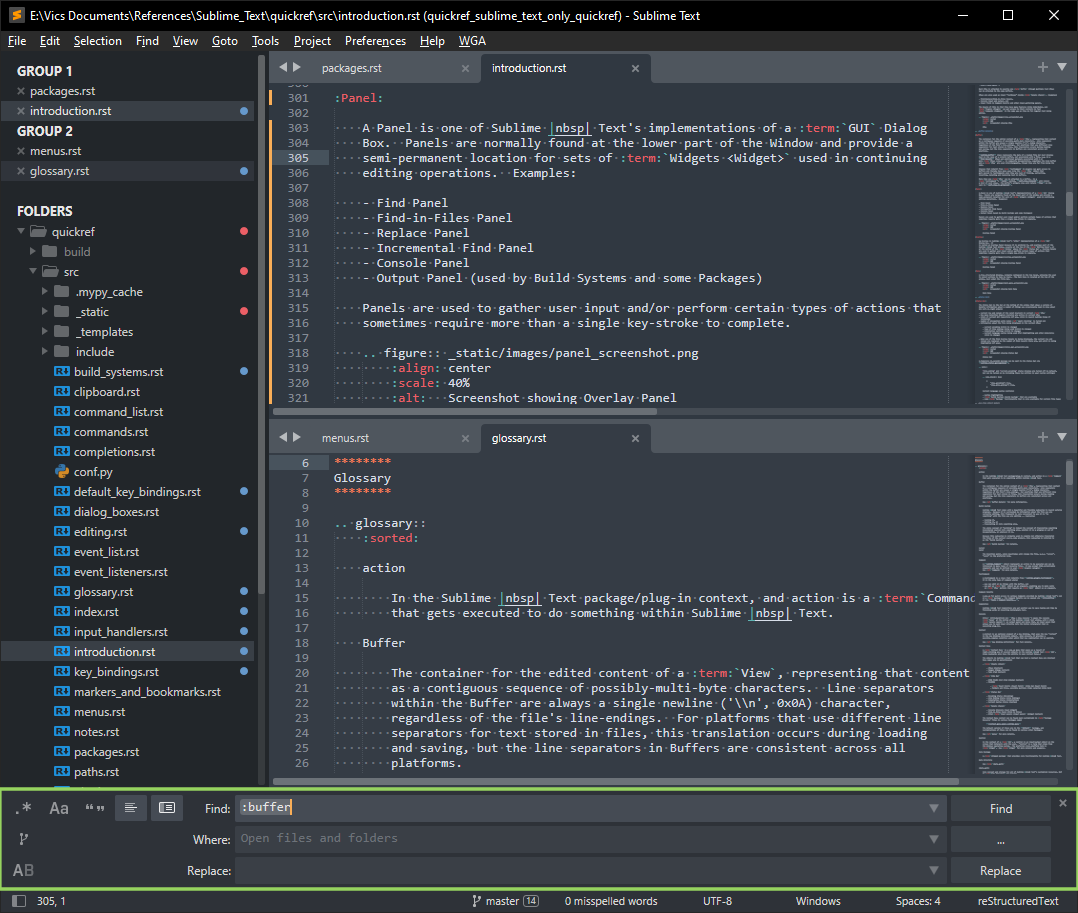
Fig. 1.2.3.8 Panel
In the lower-left corner of the screen is the “Panel Switcher” control. Right-clicking it opens a Panel pop-up menu which allows you to show certain Panels, or hide a Panel that is being displayed. If a Panel is displayed, hitting the [Esc] key is a convenient way of closing it.
Only one Panel is ever displayed at a time.
1.2.3.11. Overlay
An Overlay is Sublime Text’s implementation of a GUI Dialog Box. It is called an Overlay because it is anchored to, and temporarily overlays part of the current View Group, usually at the top. Overlays are used to gather user input and/or perform certain types of actions that sometimes require more than a single key-stroke to complete. Examples:
Command Palette Overlay
Overlays used by Packages to get user input
Custom user-created Overlays (some Packages use them).
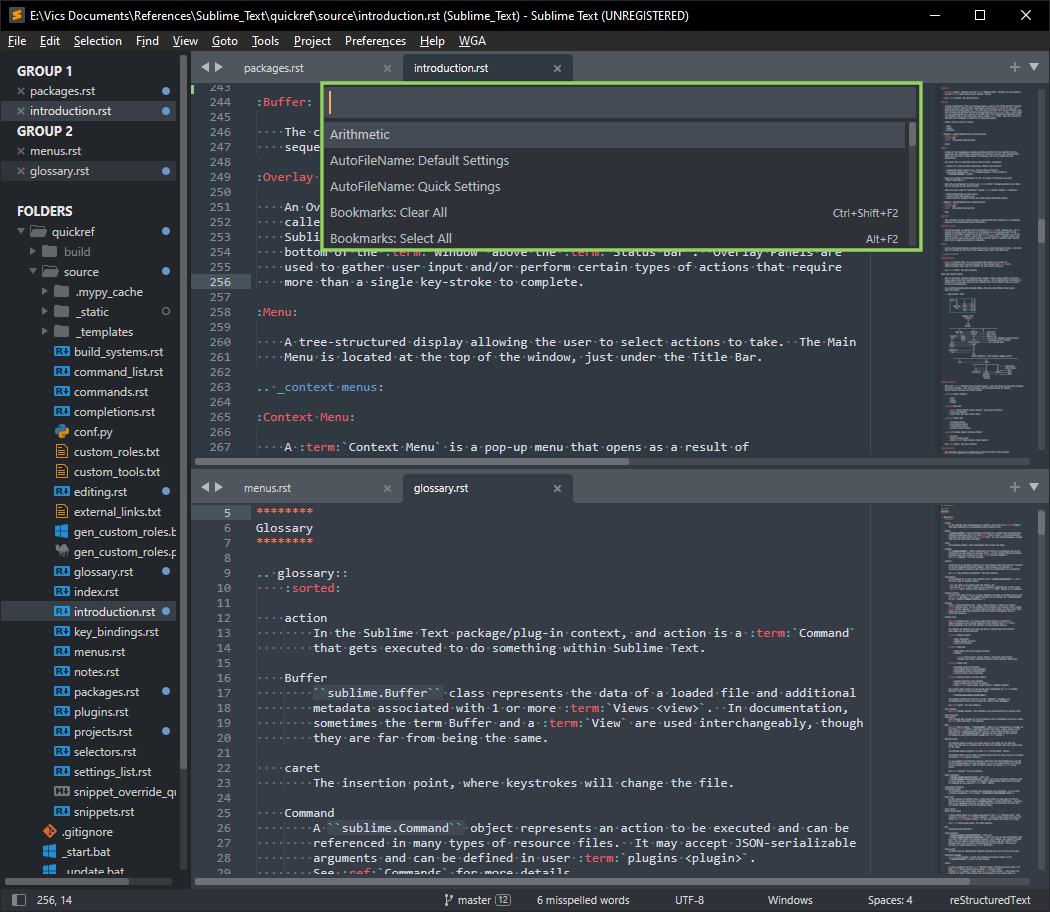
Fig. 1.2.3.9 The Command Palette Overlay
Note
Some overlays have a behavior similar to a dropdown list, which has the unfortunate name specific to Sublime Text of Quick Panel (not to be confused with Panel). Autocomplete pop-up lists are such examples.
Only one Overlay is ever displayed at a time.
1.2.3.12. Popup
A Popup is a special type of Overlay that allows Sublime Text to display formatted output in a rectangle overlaying part of the editing area. If you use a Popup to convey information to your users (e.g. as a Plugin and/or Package author), you can control the following about Popups:
content (miniHTML)
behavior (e.g. if/when Sublime Text should automatically hide it)
where it is displayed (e.g. just below caret)
You can choose where is displayed and its maximum size, and can get feedback (via an event-hook function), when the user clicks on any part of it that is meant to be “clickable”, as well as when it is hidden.
Several Popups are already built into Sublime Text:
Current Scope Overlay (a miniHTML pop-up overlay, which is a Widget for presenting information more complex than a single line of text. Hit Ctrl-Alt-Shift-P to see an example.)
Autocomplete pop-up lists.
Fig. 1.2.3.10 Overlay
Only one Overlay is ever displayed at a time.
1.2.3.13. Menu
A tree-structured display, normally collapsed to the top level, allowing the user to select actions to take by topic. The Main Menu is located at the top of the window, just under the Title Bar.
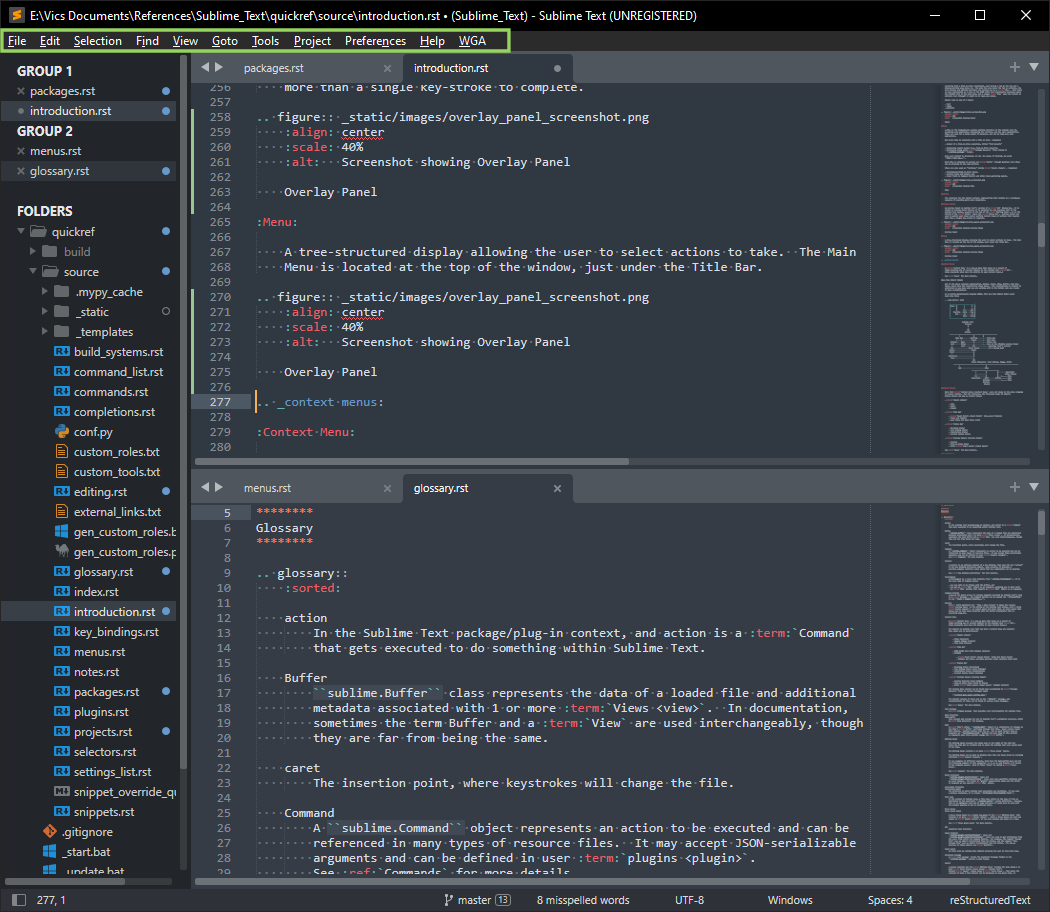
Fig. 1.2.3.11 Main Menu
1.2.3.14. Status Bar
The Status Bar is the bar at the bottom of the window that shows a variety of helpful information about a number of things you occasionally need to know about (in left-to-right order):
current row and column of the caret (cursor) in current View
how many Selection Regions (carets) are active in current View
state of current Git repository (current branch and number of untracked files, if any; click to launch Sublime Merge if installed)
number of misspelled words (when Spell Checking is turned on)
information about the file being displayed in the current View:
current encoding (click to change)
type of line endings being used (click to change)
indentation settings (click to change)
current language syntax being used (for highlighting and other behaviors; click to change)
When one of the Find Panels is being displayed, the current row and column are replaced by the number of Find results there are, and which is being highlighted (if any).
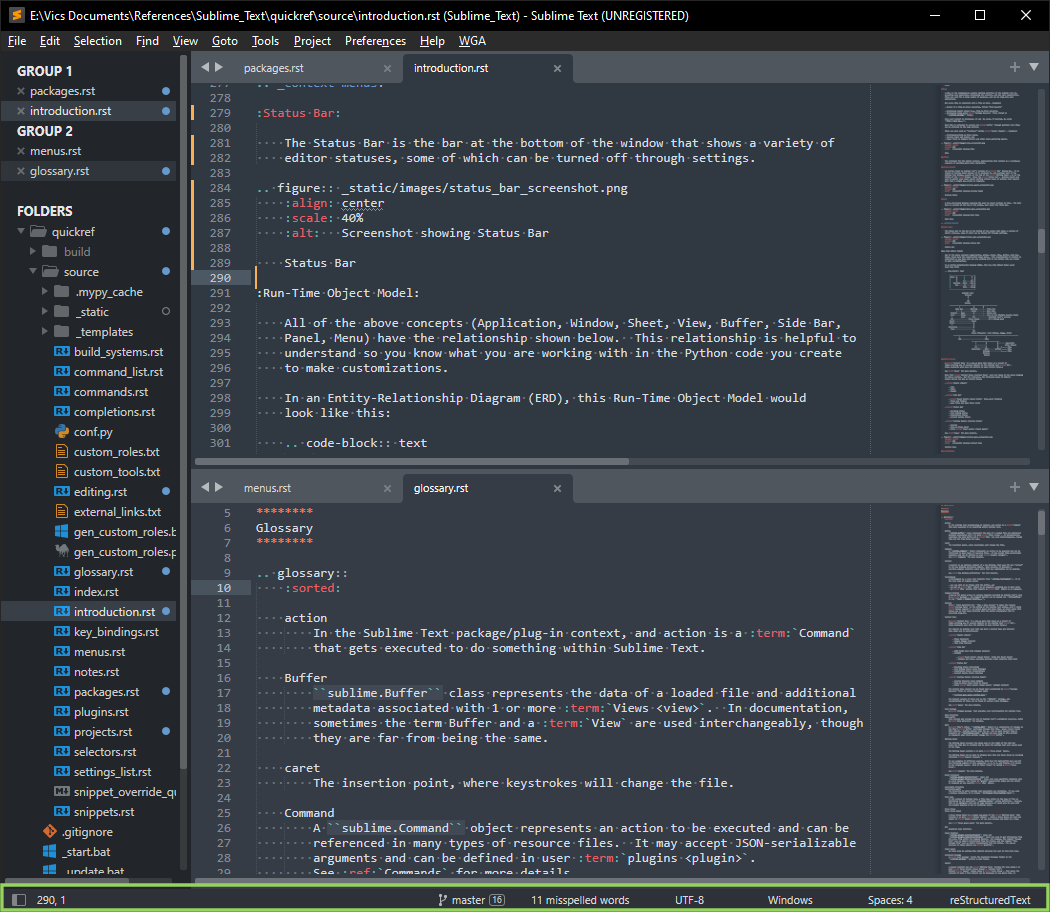
Fig. 1.2.3.12 Status Bar
A temporary (4-second) message can be sent to the Status Bar via
sublime.status_message(msg).
Note
line-ending and current-encoding status display are turned off by default, but can be turned on by including these two entries in your custom settings:
{
    "show_encoding": true,
    "show_line_endings": true,
}
Current language syntax controls:
syntax highlighting
Build Systems that are available
some Package functionality that is only available for certain file types
1.2.3.15. Run-Time Object Model
All of the above concepts (Application, Window, Side Bar, Editing Area, View-Group, Sheet, View, Buffer, Panel, Overlay, Menu and Status Bar) have the relationship shown below. This relationship is helpful to understand so you know what you are working with in the Python code you create to make customizations.
In an Entity-Relationship Diagram (ERD), this Run-Time Object Model would look like this:
+-------------------------+
|Key:  |       |       |  |
|      |       |       +  |
|      |      /|\     /|\ |
|   Exactly   Zero    One |
|     One      or      or |
|             More    More|
+-------------------------+

                    Sublime Text
                       Process
                          |
                          +
                         /|\
                       Window
 --------------------------------------------------
                   |                |
             Client Area            +-- Title Bar
         --------------------       +-- Main Menu
           |              |         +-- Status Bar
       Side Bar        Editing      +-- Zero or One Visible Overlay
        /    \          Area        +-- Zero or One Visible Popup
  Folders    Open         |         +-- Zero or One Visible Panel
  List       Files        +               (Sublime Text's version
   |         List        /|\              of a tool palette)
  /|\                 View Group
 Mount                    |  |
 Point                    |  +-- Zero or One Visible Overlay
   |                      |        (Sublime Text's version
Directory                 |        of a dialog box)
  Tree                    +
                         /|\
                        Sheet (flavors:  text [View], Image, HTML)
-------------------------------------------------------------------------
   |                              |
  Tab                             |
                                  |
                                View
    ---------------------------------------------------------------------
           |      |          |          |       |
           |      |          +          |       |
       Regions    |         /|\         |       |   /----- View
     Dictionary   |      Selection      |     Buffer ----- View
                  |  (List of Regions)  |           \----- View
                  |                     |                (possible
               Settings                Edit             other Views)
              Dictionary         (Change-History
                                      Stack)
1.2.3.16. Context Menus
A Context Menu is a pop-up menu that opens as a result of right-clicking any of several objects in the Sublime Text GUI. (Some keyboards also have the ability to open Context Menus.)
Note that Context Menus were not shown in the above diagram
to reduce clutter. But for reference, the following types of objects
(shown above) can pop up Context Menus, and each such Context Menu is represented
by a .sublime-menu file that you can customize:
-
Tabs
Views
Images
-
Mount Points (top-level folders)
files and folders
open files (in Open Files list)
-
Encoding Status
Line Ending Status
Indentation Status
Current Syntax Status
-
Console
Find-in-Files Panel
Other input panels
See Menus for more details.
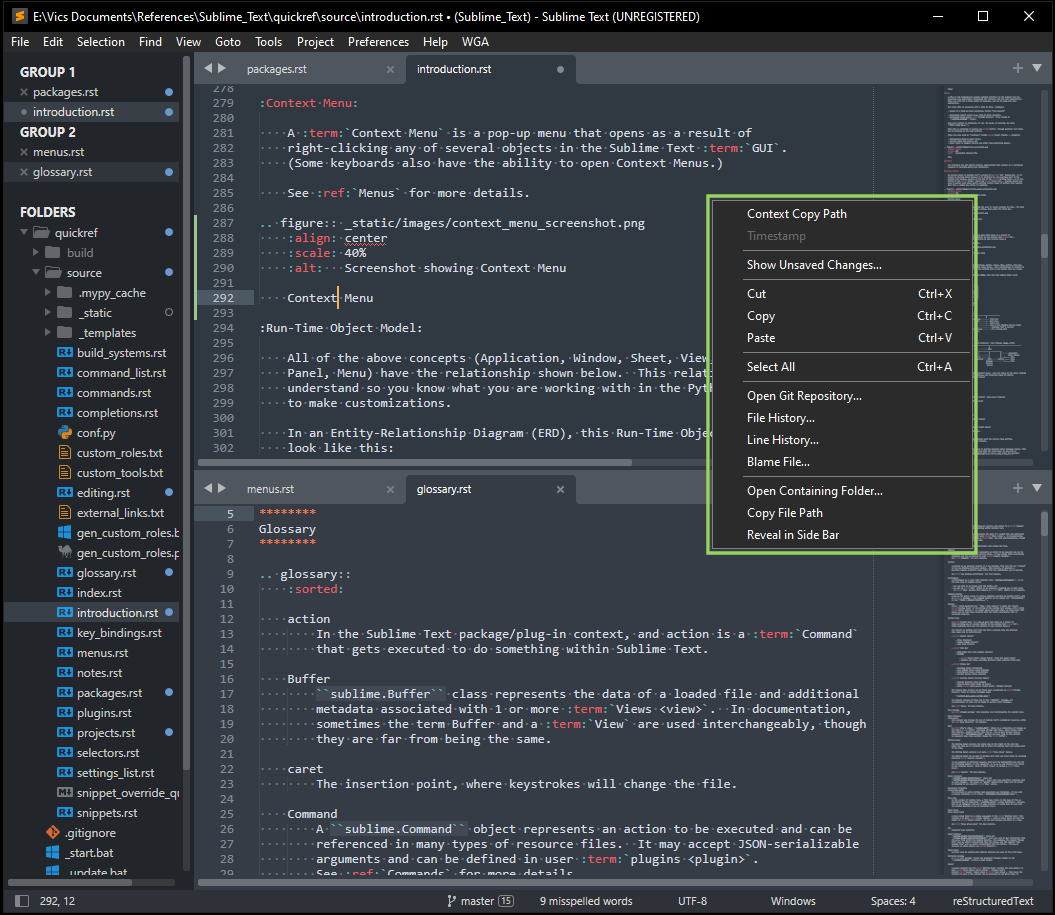
Fig. 1.2.3.13 Context Menu
1.2.3.17. Viewport
Like the CSS Viewport (which is the visible area of a web page), a Sublime Text View has a Viewport, which is the visible area of text in the View’s Buffer. It exists between the gutter on the left and the Minimap on the right, and above any scrollbar at the bottom of the View. When a horizontal scrollbar appears at the bottom of the View, the Viewport shortens by that dimension (typically 15 DIP).
See Viewport for more details.
1.2.3.18. Key Bindings
Key Bindings connect key combinations with the actions they perform. See Key Bindings for more details.
1.2.3.19. Scope
Scope is the “characteristics of the caret’s location in a text file”. When the text file is that of a language that Sublime Text understands, these characteristics can be quite detailed, all the way down to indicating (for example) “the cursor is sitting on a parameter in a function definition”. See Scope for more details.
1.2.3.20. Selector
A Selector is a string that is evaluated against the current Scope, and
triggers a True or False result based on that evaluation. Its use is
to determine whether a particular ‘thing’ (e.g. a key binding or menu item) is
currently applicable based on the nature of the current caret location,
i.e. its Scope.
If you’re familiar with CSS, Sublime Text Selectors behave like selectors in a CSS file: they are an efficient method of determining whether something “applies” or not.
See Scope, Selectors and Context for more details.
1.2.3.21. Context
A Context is an optional element of a Key Binding dictionary object with “context” as its key. When present, it provides a possibly-complex condition under which that key combination can be applied. Contexts may use a Selector, but can also be comprised of many other tests that are not Selectors.
See Key-Binding Definitions for full details.
1.2.3.22. Commands
Commands are how Sublime Text carries out actions that are beyond handling individual printable keystrokes. They are ubiquitous: key bindings, menu items, macros and many other types of actions are implement through the command system.
Some commands are implemented in the editor’s core, but the remainder are provided through Plugins, which means you can view and customize their source code and behavior. Every command (including built-in ones) can be called from a Plugin.
See Commands for details.
1.2.3.23. Settings
Settings (Preferences) are one of the ways you can customize Sublime Text’s behavior.
Settings are stored in JSONC format. The global defaults for these are accessed (read-only) by:
(left side since Sublime Text 4)
See Settings for more details.
1.2.3.24. Project
A Project is how Sublime Text enables the user to rapidly access and open a set of related files from the Side Bar Folders tree. See Projects for details.
1.2.3.25. Completions
The concept of Completions is an “umbrella” topic that covers different ways Sublime Text saves typing and time by finishing words or inserting boilerplate text. See Completions for details.
1.2.3.26. Snippets
Snippets are a subset of Completions. A Snippet is an external simplified XML file that enables one to call up static text that you use frequently, and can optionally perform like an HTML form, giving you the opportunity to manually fill out “fields”. Snippets can also be used programmatically by plugins. Together, these two methods of using Snippets make them a very powerful customizable feature of Sublime Text. See Snippets for details.
1.2.3.27. Plugins
Plugins are Python modules that are stored in the root of a Package directory, and serve to provide additional (or modified) functionality for Sublime Text. See Plugins for details.
1.2.3.28. Packages
A Package is a group of Package Resource files grouped under one directory name, which name indicates the nature of the additional functionality it provides to Sublime Text. See Packages for more information.
1.2.3.29. Data Directory
Once installed, all customizations of Sublime Text go into its data directory, also referred to as <data_path> throughout this documentation. It has a different path depending on the platform:
- Windows:
%APPDATA%/Sublime Text/- Windows Portable Version:
path/to/application/Data/- Linux:
~/.config/sublime-text/- MacOS:
~/Library/Application Support/Sublime Text/
This also makes it easy to revert Sublime Text to its freshly-installed state by:
closing Sublime Text,
renaming that directory to a backup directory,
re-starting Sublime Text.
or by starting Sublime Text with the --safe-mode command-line option.
See also Troubleshooting for more details.
1.2.3.30. Console Panel
Sublime Text and Plugins can print debug information to the Console
by using the Python print() function. To open the Console, press Ctrl+`
or select from the main menu.

Fig. 1.2.3.14 Console Panel
The upper panel is a read-only View and at this writing cannot be searched. You can, however, copy text from it and paste it elsewhere. The lower part of the panel is an Input View that sends its input to the built-in Python interpreter, giving you direct access to the Sublime Text API.
Entering sublime.log_commands(True) and/or sublime.log_input(True) is a
great way to see what’s going on inside, as well as debug, if something isn’t
going as you expected.
Using sublime.log_commands(True) is also the only way currently known by this
author to discover the names of internal commands that are built into the
Sublime Text core, and therefore not exposed to being gathered and
reported by Plugins like generate_cmd_list.py.
1.2.4. Path Syntax
Sublime Text uses forward slashes as directory separators on all platforms.
While on Windows systems, native Windows path syntax (using backslashes) is supported
in the “Where” field (path(s) + filters) of the “Find-in-Files” Panel, and in the
path element of Sublime Project files, and possibly in other places where paths
are used, forward slashes are fully supported everywhere, including in those places.
1.2.5. Sublime Python
Sublime Text has its own internal Python engine. It does not interact with, impact, or use Python in your system PATH variable in any way, unless directed to do so by a Build System.
1.2.6. Sublime API
The Sublime Text Python API is contained in:
<install_path>
/Lib/python38/*.pyand<install_path>
/Lib/python33/*.py.
If you are a Python developer and want to customize Sublime Text, this is a great place to look to better understand the facilities that are available. The above Run-Time Object Model should help you better understand where objects of each class are (e.g. Window, View, Buffer, etc.), and their relation to the whole.
1.2.7. JSON
Most types of settings in Sublime Text are stored (or represented) in JSONC format.
1.3. Additional Resources
1.3.1. Documentation
Official documentation: https://www.sublimetext.com/docs/index.html
Unofficial documentation: https://docs.sublimetext.io/
1.3.2. In-Application References
: lets you see all the default “things” you might want to customize, such as default settings, menus, commands available to the Command Palette, etc., and where they have overrides in place from installed packages. Example: type in “sublime-menu”.
Main.sublime-menucontains all the default menu bar items starting at the top level and showing all their children.See Menus for more details.
Comments in default settings that document each individual setting value:
1.3.3. Training Videos
1.3.4. Sublime Text Community
1.3.5. 3rd-Party Contributions, Examples, Etc.
There are literally dozens if not hundreds of of GitHub accounts and other sites that host repositories for publicly-released 3rd-Party Packages. These often show great example Plugins and Packages for Sublime Text that you can both install and learn from.